Barnsbook™ is an all-in-one farm and livestock management app for iPhone, iPad, and Mac. Everything works offline — your data lives on your device and never touches a server. This guide walks you through the app layout, dashboard, and first-time setup so you can hit the ground running.
The Dashboard
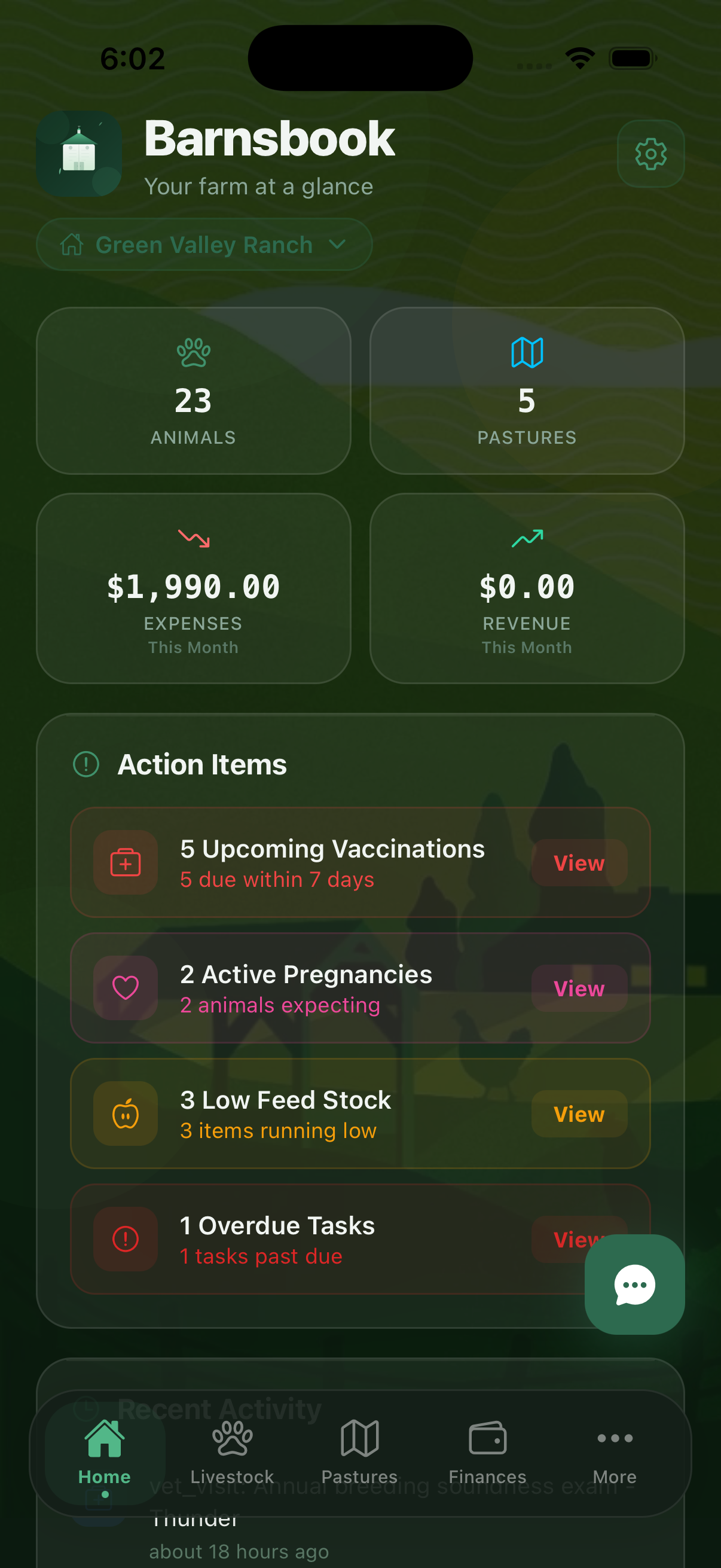
When you open Barnsbook, you land on the Dashboard. This is your farm's control center. It shows a high-level overview of everything happening across your operation, including:
- Herd overview — total animal count by species and status
- Weather forecast — local conditions pulled from your device's location
- Recent activity — latest health records, calvings, expenses, and task completions
- Action items — upcoming vaccinations, breeding due dates, and tasks that need attention
- Financial summary — quick view of recent expenses and revenue
The Dashboard is read-only — it surfaces what matters most. All data entry happens inside individual sections like Livestock, Health, or Expenses.
Setting Up Your Profile
Tap the More tab at the bottom of the screen, then tap your name at the top to open your profile. Here you can set your name, farm name, and business details. This information appears on reports and exports, so it's worth filling in.
Your Ranch
Barnsbook organizes everything around a Ranch. Your ranch is the top-level container for all your animals, pastures, expenses, and records. When you first open the app, a default ranch is created for you.
With a Pro or Premium subscription, you can create multiple ranches and switch between them using the Ranch Switcher at the top of the More screen. Each ranch maintains its own completely separate set of animals, pastures, and finances.
The Tab Bar
The bottom tab bar is your primary navigation. Barnsbook has six tabs:
- Dashboard — herd overview, weather, action items, and recent activity
- Livestock — your animal list with search and filtering
- Land (Pastures) — pasture map and grazing management
- Finances — financial summary across revenue and expenses
- Expenses — expense log with categories and receipt photos
- More — everything else: AI tools, breeding, health, reports, settings
You can customize which tabs appear in the tab bar. Go to Settings > Customize Tabs to reorder or replace tabs with the features you use most.
The More Menu
The More tab is the hub for every feature beyond the main tabs. It's organized into five sections:
- AI Tools — Ranch Assistant, Daily Briefing, Health Anomalies, Heat Detection, and more (Premium)
- Farm Management — Breeding Tracker, Pregnancy Tracker, Calving Records, Health Records, Feed Management, Weight Tracking, Pedigree, and more
- Operations — Expenses, Revenue, Equipment, Vendors & Suppliers, Tasks
- Analytics & Forecasts — Market Prices, Profit Forecast, Tax & Deductions, Fertility Reports (Pro/Premium)
- Compliance & Reports — USDA Compliance, Reports, Documents, Export Data (Pro)
Use the search bar at the top of the More screen to quickly find any feature by name.
Free vs. Pro vs. Premium
Barnsbook is free to start with generous limits — up to 15 animals, 5 pastures, 3 equipment items, and 50 expenses per month. When you're ready to grow:
- Free — Core features, 1 ranch, health and breeding records, EID scanner
- Pro ($9.99/mo) — Unlimited animals, multiple ranches, crops, vendor management, CSV/PDF exports, Schedule F tax reports
- Premium ($19.99/mo) — Everything in Pro plus 13+ AI features and team collaboration
Ready to manage your farm smarter?
Download Barnsbook for free on the App Store. No account required — just open the app and start adding animals.
Download on the App Store